
This is an old revision of the document!
Table of Contents
How to Use my Video Conference Invitation
Introduction
This HowTo outlines the steps required to dial into a video conference with Consulting4Change as host and organiser.
How to Proceed, Step by Step
Step 1: Find your Emailed Invitation Link
Open you email and retrieve the invitation received from Consulting4Change. In the email, there will be an invitation link for you, looking similar to the following:
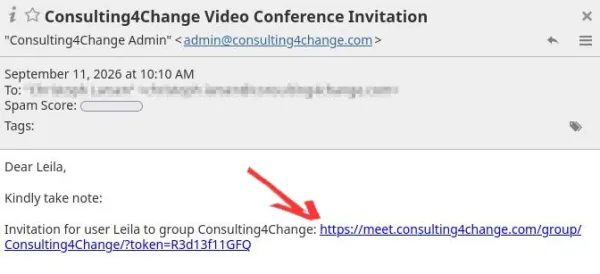
Step 2: Open the Invitation Link
If you use a modern web browser like Brave, Chrome or Firefox as default, you can just click on the link above, and you will be redirected to the right site.
If you use a privacy-enhanced web browser as default, chances are that audio and video capabilities are severely restricted.
In this case, install Brave, Chrome or Firefox, unless one of them is already on your system.
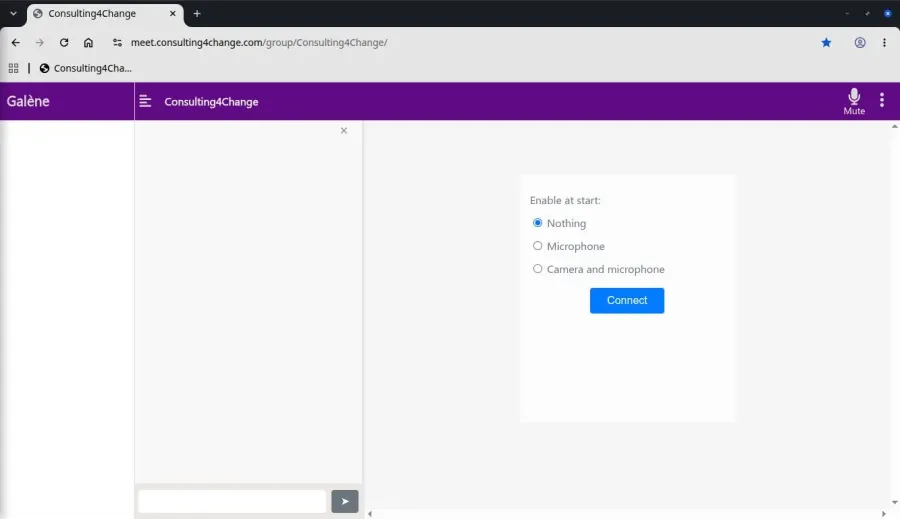
Next copy/paste the invitation link from the email into the address field of your Brave, Chrome or Firefox web browser.
You will see something like this:
Step 3: Enable Audio and Video Calling
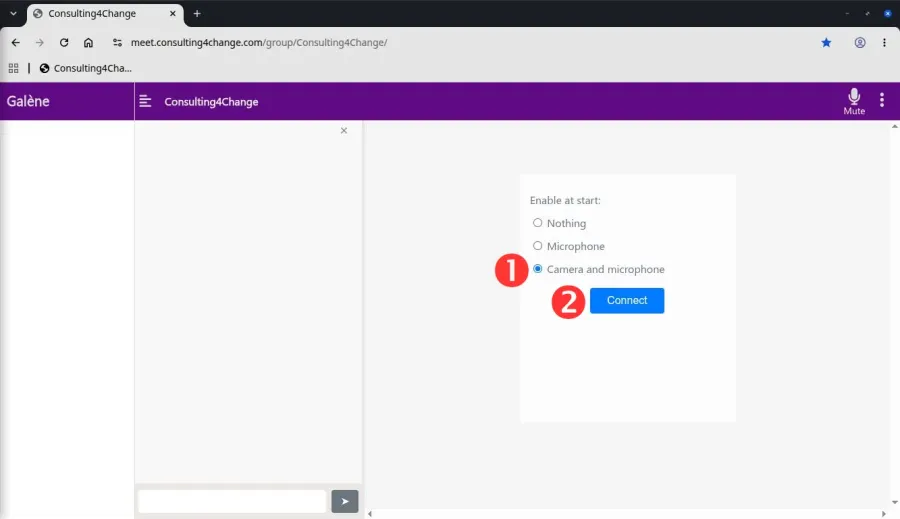
Next, select Camera and microphone to enable both voice and video communication during the conference call.
Note: In situations with bad connectivity, select Microphone, only, instead.
When done, press Connect to continue.
Step 4: Give Browser Permissions
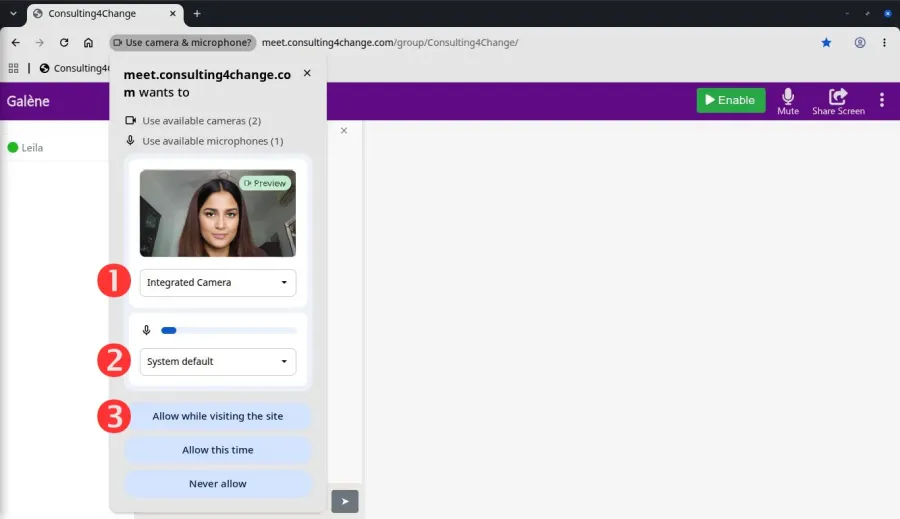
Once you connect with microphone and/or camera enabled, your web browser will access you for premission to access the microphone and camera.
First, select the camera to be used - there may be only one.
Second: select the preferred microphone - again, there may be only one to choose from.
Finally, confirm by selecting Allow while visiting this site, which grants permission for future use of this video conferencing site.
Success
You are done!
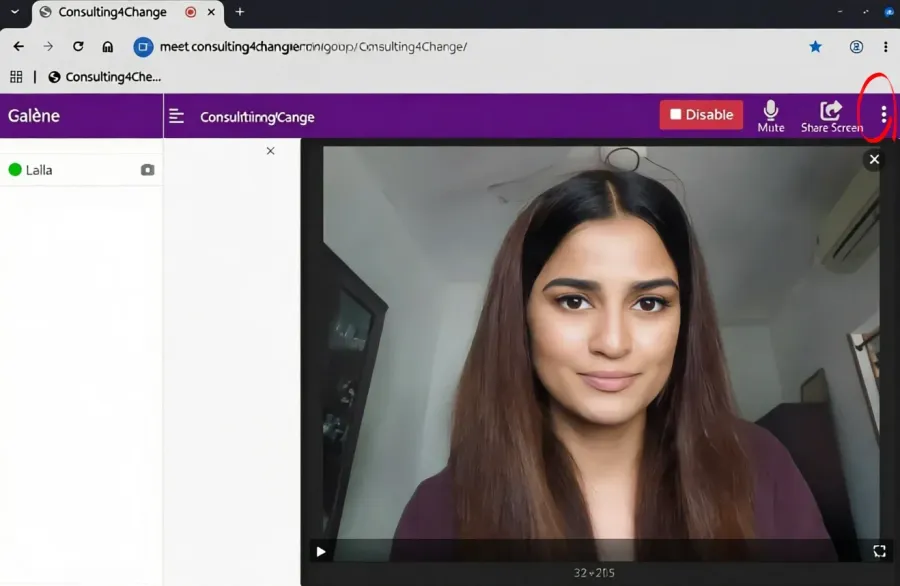
Helpful hints:
- The
Enable/Disablebutton switches camera and microphone on and off. - You can selective enable/disable the camera and/or microphone by going to the top-right
Optionsmenu.

Ground Rules
Video conferencing depends on stable, fast network connections, none of which can be taken for granted everywhere. In order to make the most of our video conferencing platform (which is, by the way, used by the Université de Paris and by Sorbonne Université for lectures, seminars and conferences), please remember the following:
- Always use headphones for listening. Loudspeakers are out, because they create feedback.
- You can use any suitable microphone; it does not have to be the one connected to your headphone.
- Mute your microphone, if you are not talking to avoid the transmission of background noise.
- If network speed is slow, switch off your camera as seen in the
Optionsmenu. - If you get disconnected, you will have to log in again. Simply use your invitation link to do so.
Enjoy the tool and contact the Webmaster in case of any questions!