
This is an old revision of the document!
Table of Contents
How to Use my Video Conference Invitation
Introduction
This HowTo outlines the steps required to dial into a video conference with Consulting4Change as host and organiser.
How to Proceed, Step by Step
Step 1: Find your Emailed Invitation Link
Open you email and retrieve the invitation received from Consulting4Change. In the email, there will be an invitation link for you, looking similar to the following:
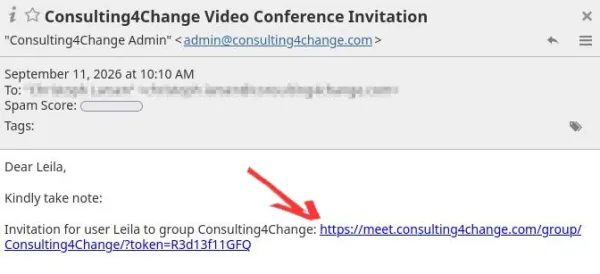
Step 2: Open the Invitation Link
If you use a modern web browser like Brave, Chrome or Firefox as default, you can just click on the link above, and you will be redirected to the right site.
If you use a privacy-enhanced web browser as default, chances are that audio and video capabilities are severely restricted.
In this case, install Brave, Chrome or Firefox, unless one of them is already on your system.
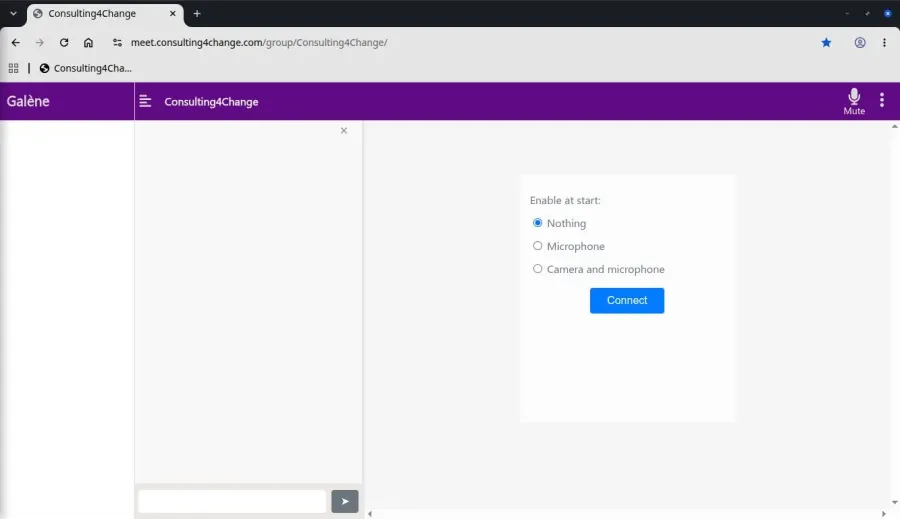
Next copy/paste the invitation link from the email into the address field of your Brave, Chrome or Firefox web browser.
You will see something like this:
Step 3: Enable Audio and Video Calling
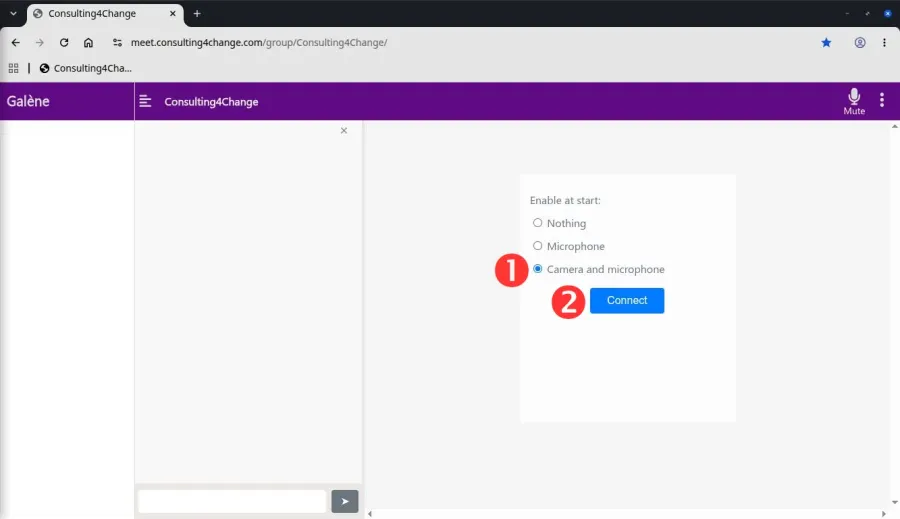
Next, select Camera and microphone to enable both voice and video communication during the conference call.
Note: In situations with bad connectivity, select Microphone, only, instead.
Enjoy the tool and contact the Webmaster in case of any questions!