
This is an old revision of the document!
Table of Contents
How to Install and Configure Element
Introduction
The Element app is connects to a self-hoisted Matrix chat, video and videoconferencing server, and therefore offers an secure and safe alternative to cloud-based solutions like Signal, Telegram or WhatsApp.
How to Install Element on your SmartPhone
First, go and pay a visit to DPPI's Giraffe:
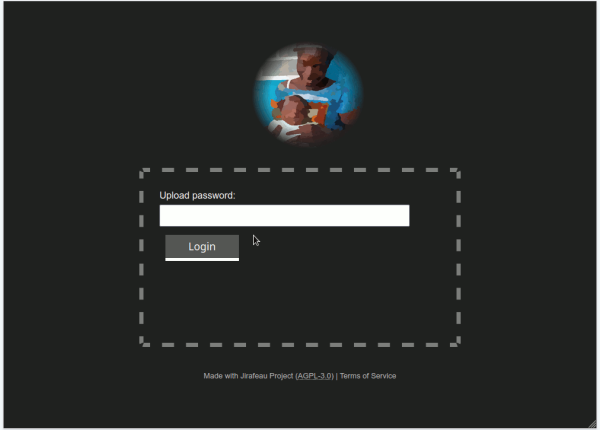
We do not want the entire Internet to access this platform, even though uploaded files are encrypted and self-destroy after one (1) month. Therefore, you will be given a simple password during the next virtual meeting.
Enter this password and press Login:
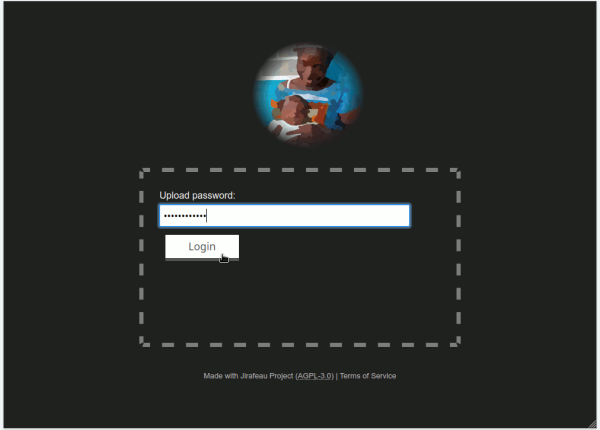
Next, you will see a screen that invites you to select a file for upload:
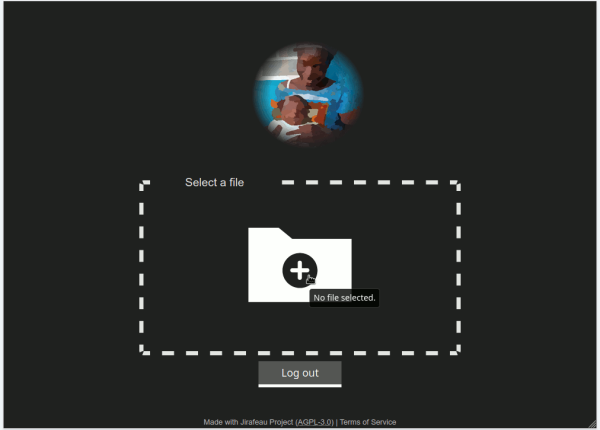
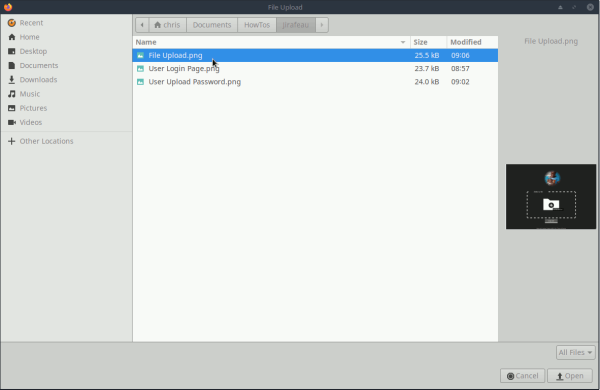
Click on the + icon and select a file from your workstation:
Next, you will see the upload confirmation screen, where you have the option to encrypt the file you want to upload with a password of your choice. This is not normally required, but if you do so, you will have to share your chosen password with your team so that they can access the file.
Click Send, and after a short while that is needed to do the actual upload, you will see:
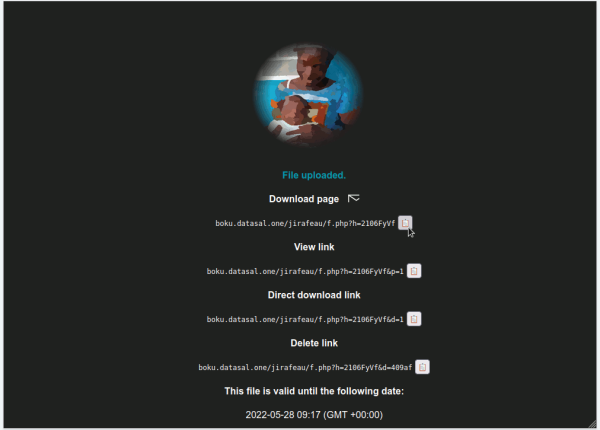
This is where you manage the shared file handling as follows:
| Link Name | Redirects to | Note |
|---|---|---|
| Download page | File download page | |
| View link | File viewing page | |
| Direct download link | Direct file download | Without opening any browser page |
| Delete link | File delete link | Only required, if you erroneously uploaded a file, as files are removed automatically after 1 month |
Click the clipboard icon  to copy the desired link, and paste it into your browser.
Once you close the above window, management access to the uploaded file is lost!
For instance, when copy/pasting the Download page, you will get:
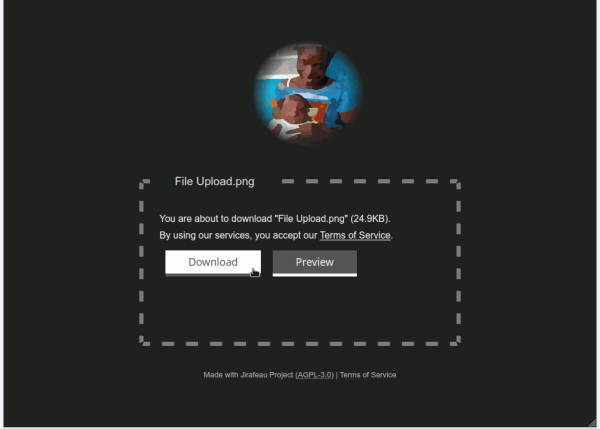
Check out the other links to see what they are doing!
Enjoy the tool and contact the Webmaster in case of any questions!